

Connecting Your Wallet
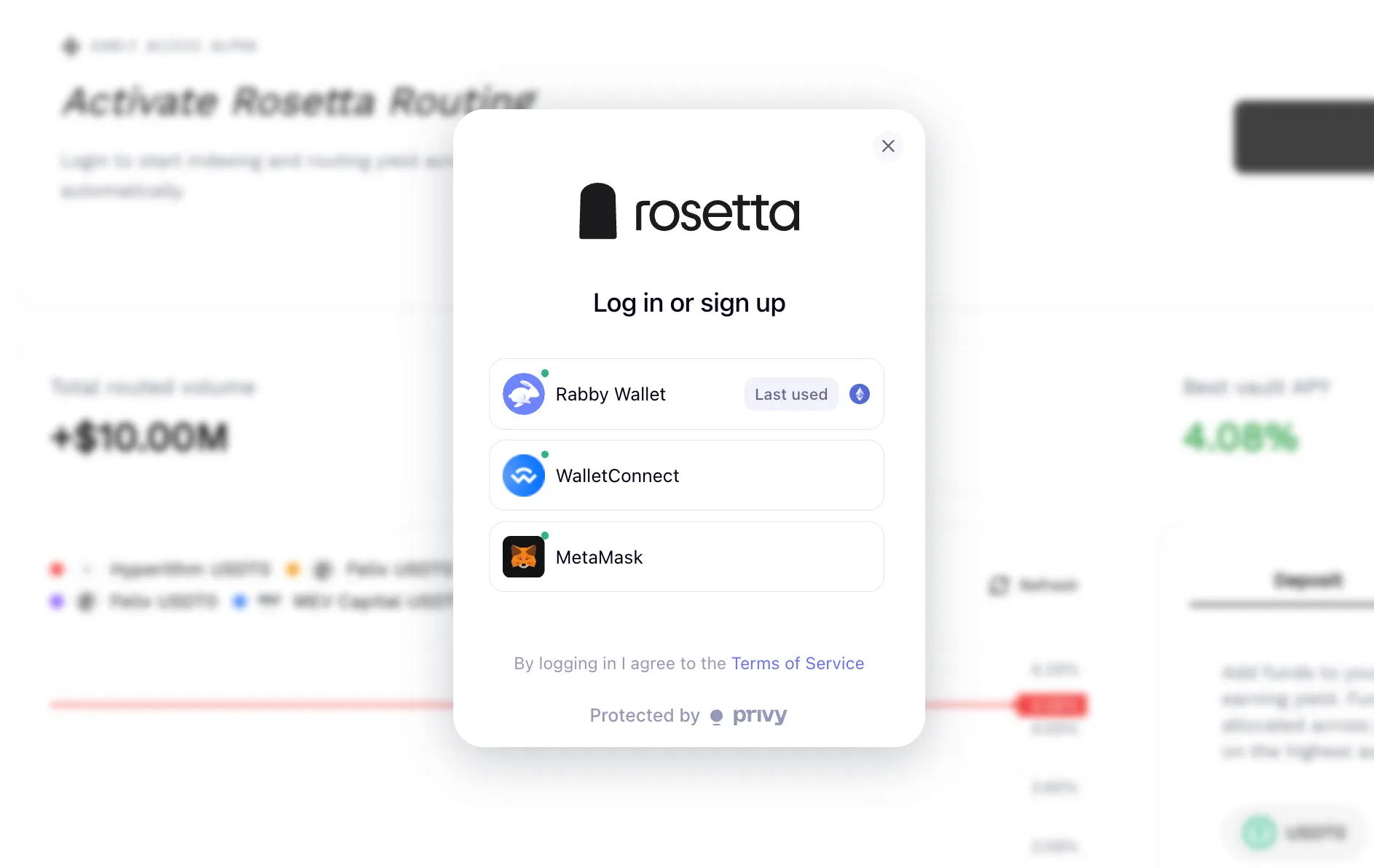
To start using Rosetta:- Navigate to app.rosetta.sh
- Click “Connect Wallet”
- Select your wallet provider (MetaMask, Coinbase, Rainbow, or WalletConnect)
- Approve the connection
Selecting a Chain
Use the chain selector in the top navigation to switch between supported chains:- HyperEVM: Morpho and Aave markets and vaults, supports USDT0 and USDC
- Base: Morpho vaults, supports USDC
Understanding Your Accounts
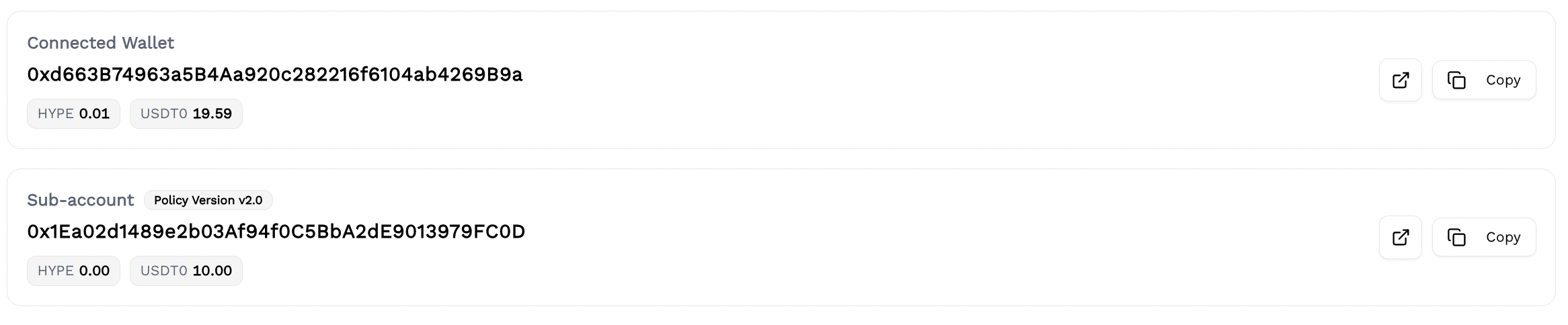
After connecting, you have two accounts per chain:
Both addresses are visible in the Account section. Funds deposited into Rosetta are held in your sub-account, not by Rosetta.
Setting Your Policies
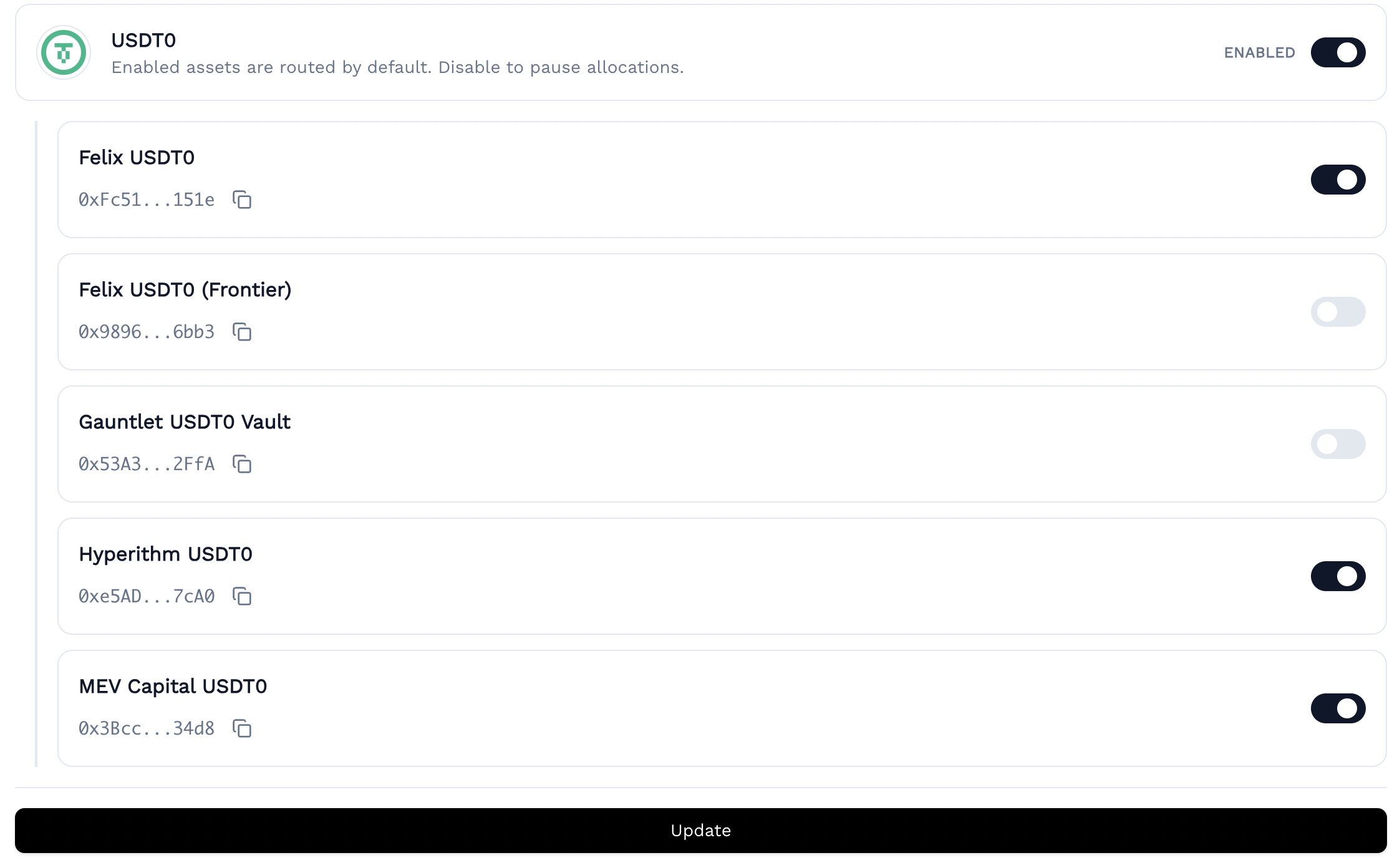
Before depositing, configure which vaults and protocols the Router can access:- Select an asset (USDT0 or USDC on HyperEVM; USDC on Base)
- Enable or disable individual Morpho vaults
- Enable or disable Aave markets
- Click Update and sign the transaction
Depositing
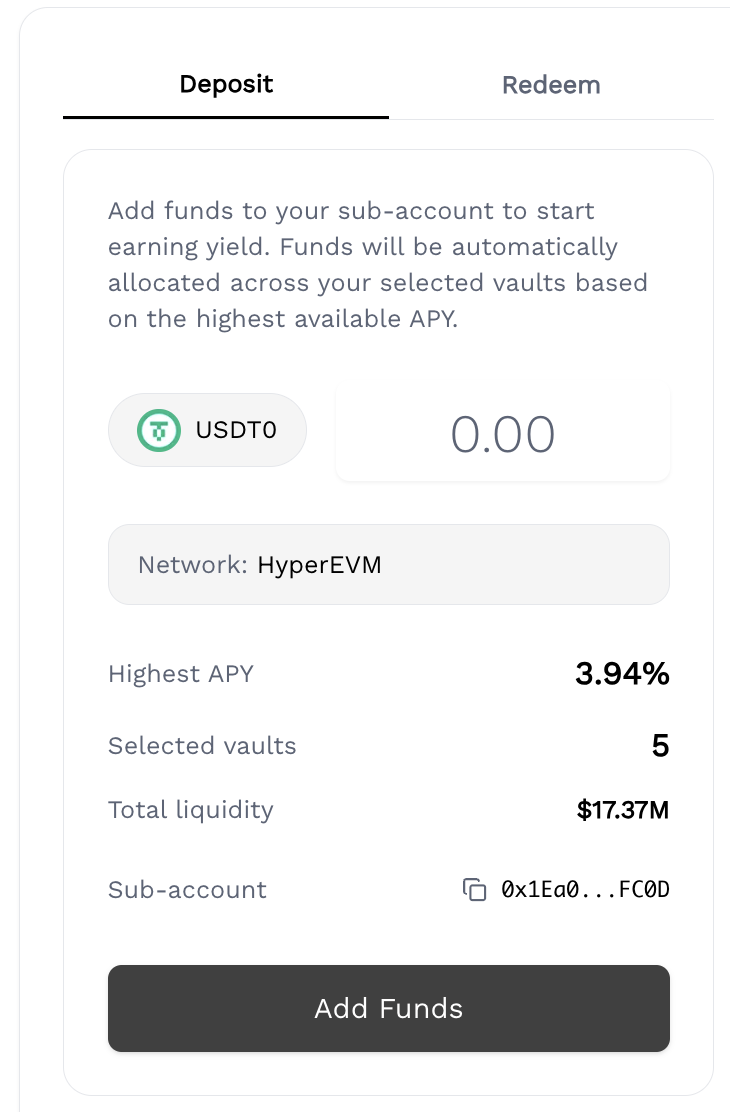
To deposit:- Go to Overview
- Select your asset (USDT0 or USDC)
- Enter amount (minimum 10 USD equivalent)
- Click “Add Funds”
- Approve the transaction
Monitoring Your Position
Overview
Displays your current balance across all protocols, active vault or market, APY, and a real-time yield chart comparing your enabled vaults.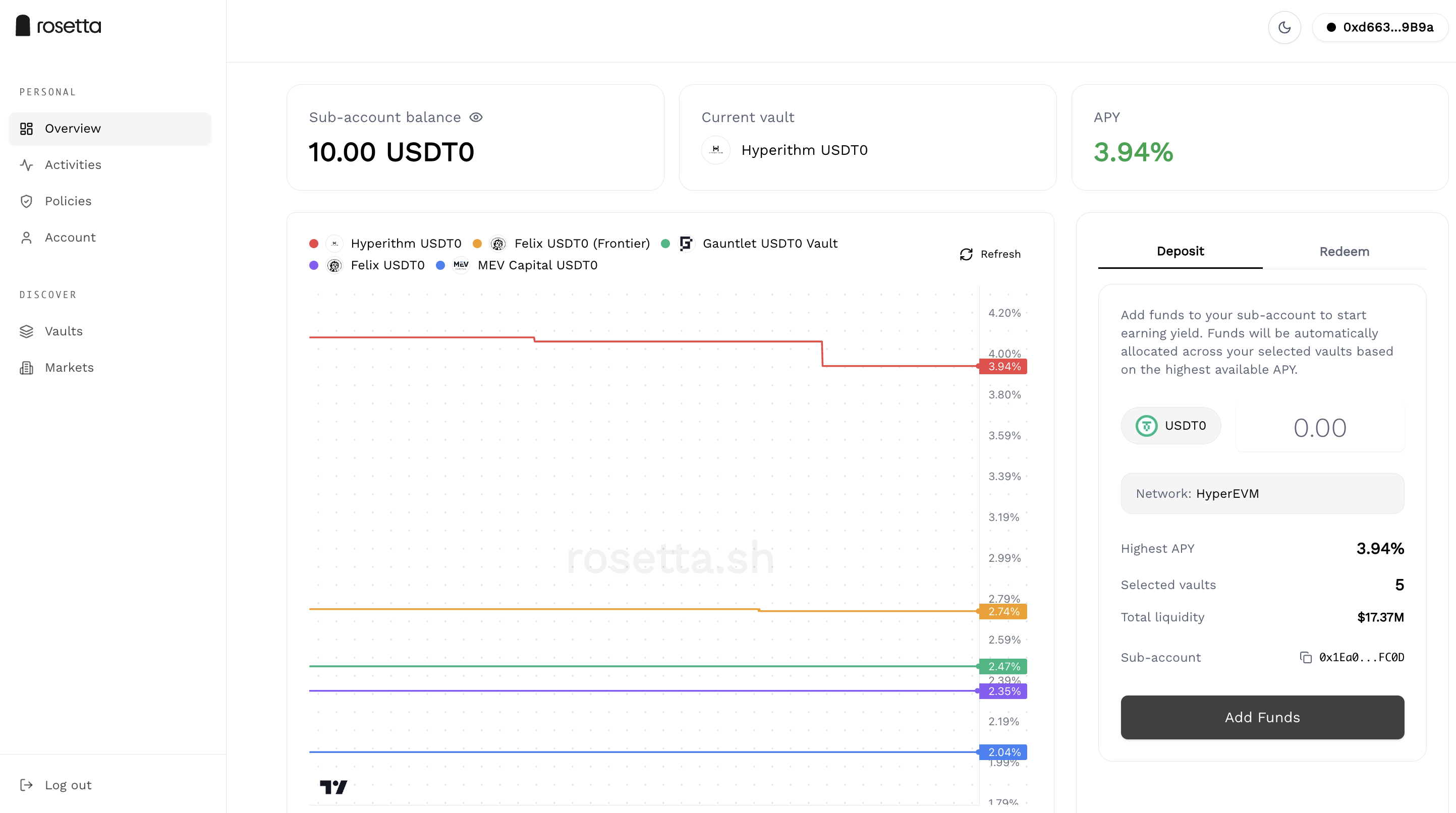
Activities
Lists all deposit, withdrawal, and rebalancing transactions with timestamps, block numbers, and protocol labels.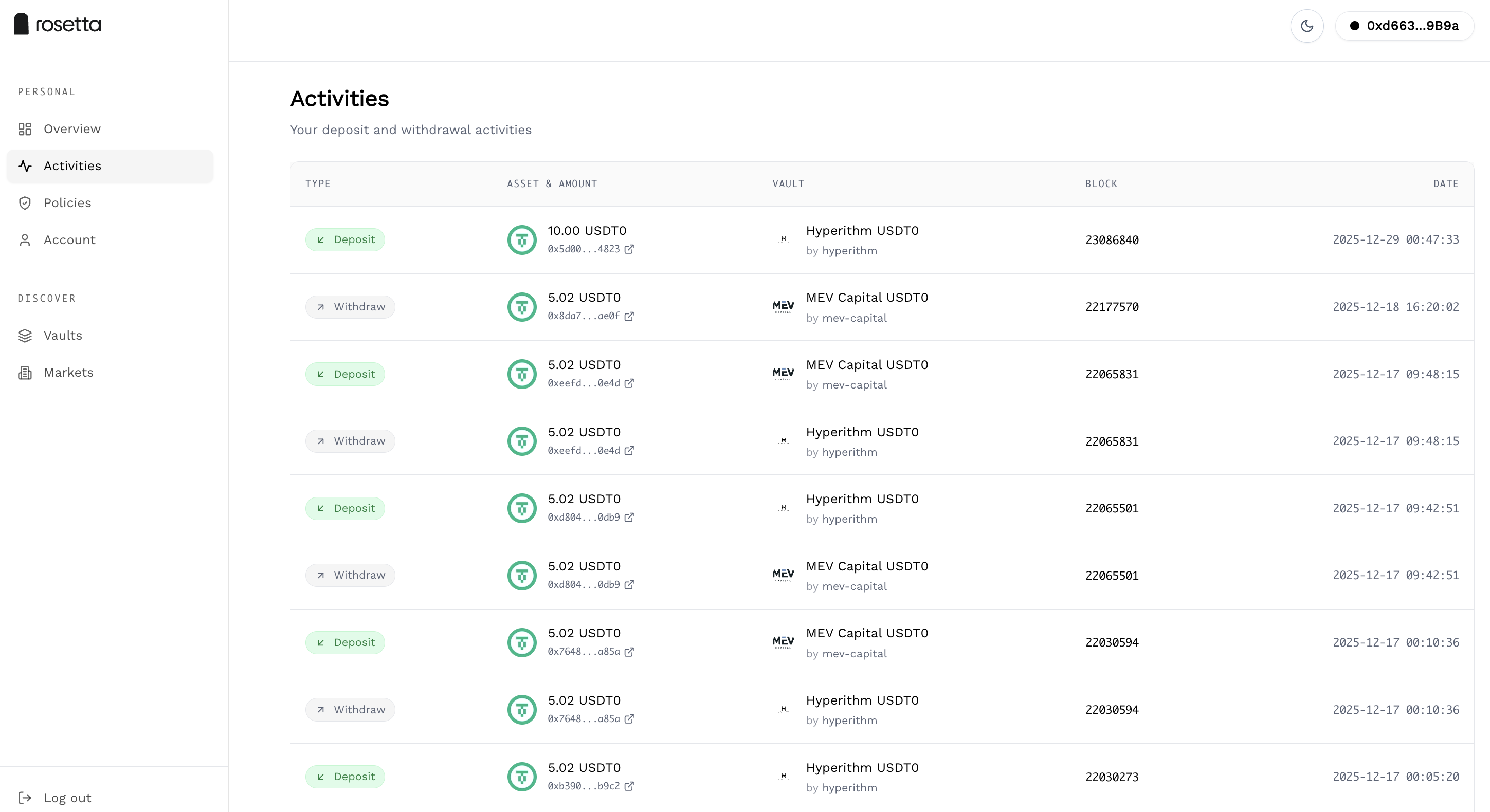
Discover
Browse all available vaults and markets tracked by the Indexer:- Vaults: Supply APY, total deposits, market allocation, curator
- Markets: Borrow APY, Supply APY, utilization, liquidity, LLTV
- Aave: Supply APY, utilization
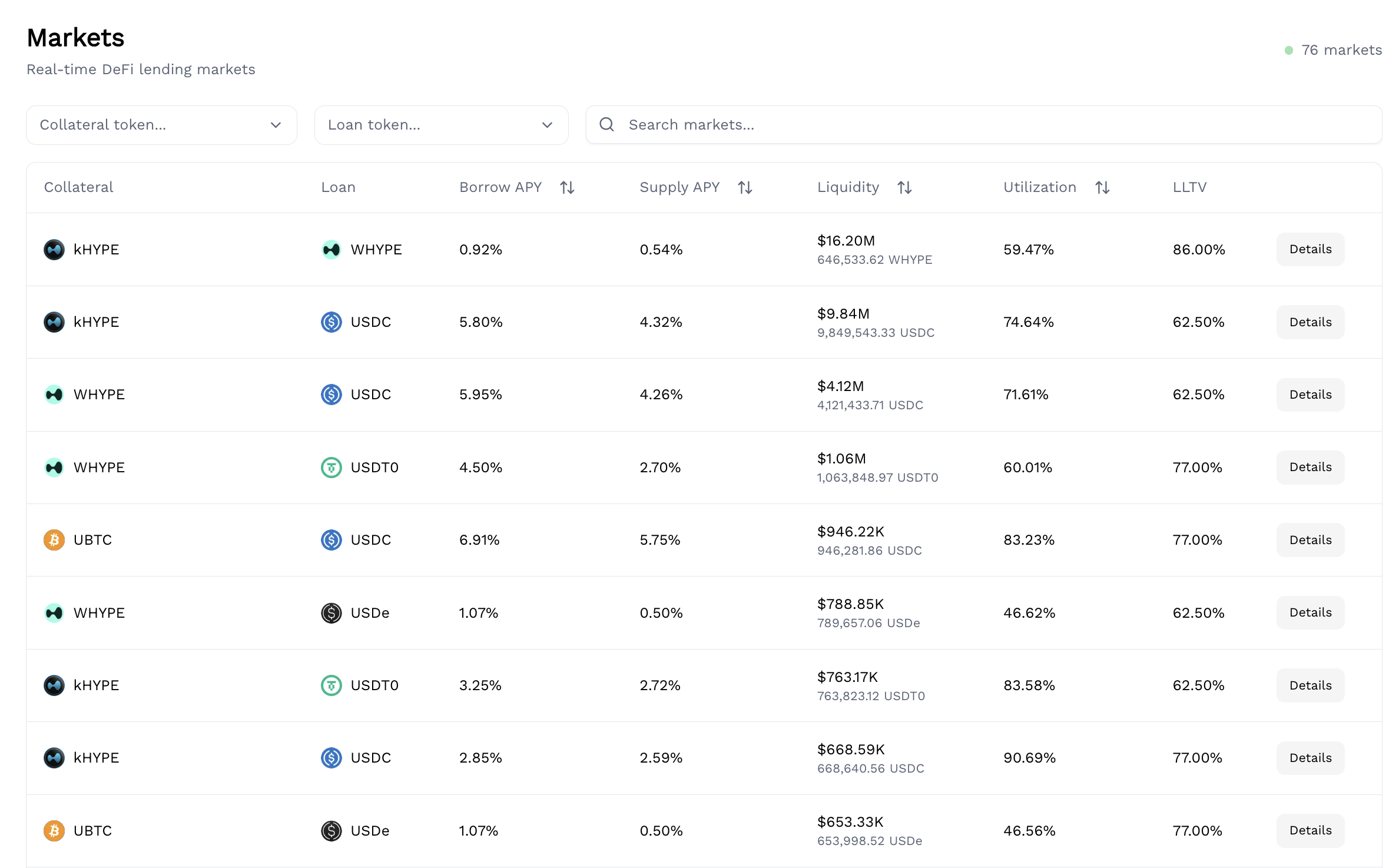
Withdrawing
To withdraw:- Go to Overview
- Click “Redeem”
- Approve the transaction